
Cleaning Up Calculation Names Across Workbooks (feat. Claude)

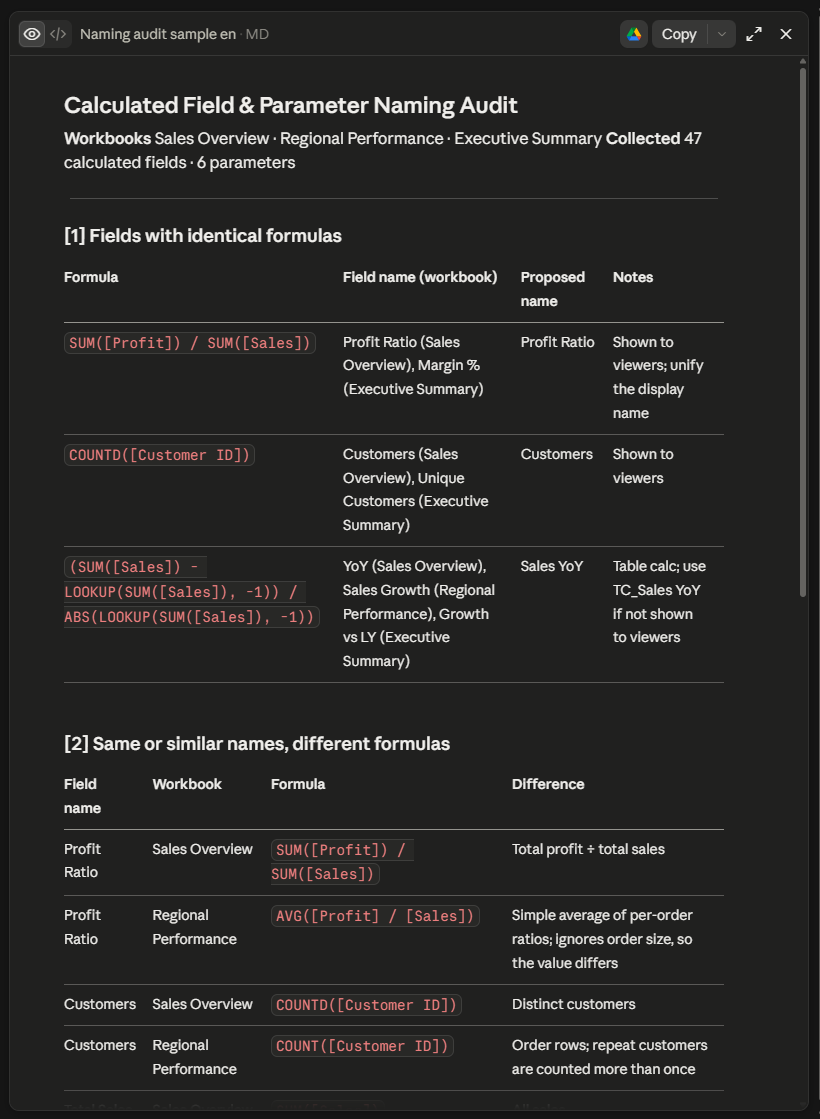
As workbooks multiply and more people build them, the same calculation ends up under different names in different files. Profit Ratio and Margin % turn out to be the same formula — and two fields both called Profit Ratio return different values in different workbooks. With Tableau MCP connected, paste the prompt below into Claude, swap in the workbook URLs you want to check, and the cleanup runs in a single pass.
Collect all calculated fields and parameters from the Tableau Public
workbooks below, then audit them for naming consistency.

[1] Group fields that do the same thing, comparing formulas rather than
    names. Ignore whitespace and casing differences.
[2] Separately, collect fields with the same or similar names but
    different formulas. Show the formulas side by side and explain how
    the results differ.
[3] Propose standard names using the rules below. Keep names that
    already comply.
    - Fields shown to viewers: name them exactly as displayed
    - Parameters: English, p. prefix, CamelCase (e.g. p.SelectMeasure)
    - Filter fields: f. prefix
    - Temporary/test fields: z_ prefix
    - Explicit aggregation: Total, Avg. / YoY, MoM suffixes for period comparisons
    - Booleans: is_ or has_ prefix
    - LOD expressions: LOD_ prefix; table calculations: TC_ prefix
[4] Parameters may be called by name from URL actions or embedding code,
    so if you propose renaming one, flag it in the notes.

Write [1] through [3] as separate Markdown tables in a file.

Workbook URLs:
https://public.tableau.com/views/...
https://public.tableau.com/views/...
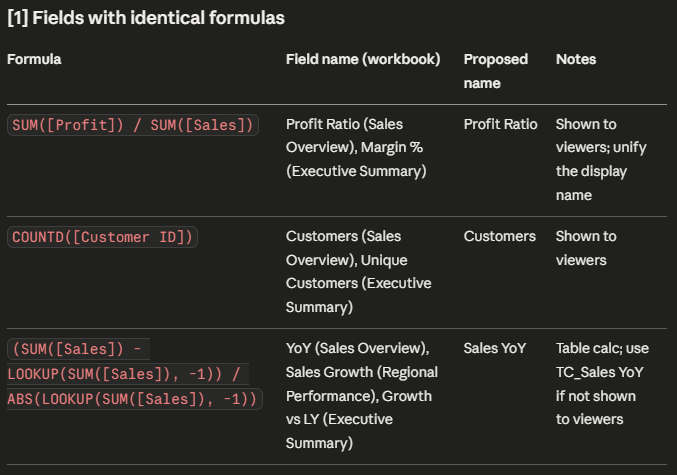
Without [1]'s "comparing formulas rather than names," fields like Total Sales and Total Cost get grouped on name similarity alone and the real duplicates stay hidden.
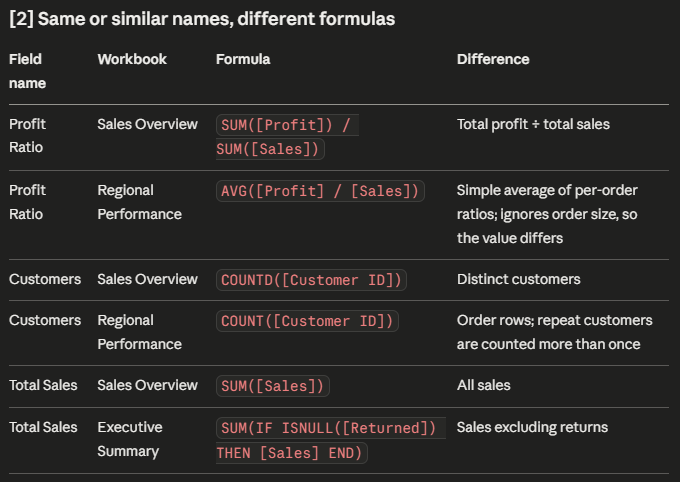
[2] matters even more. SUM([Profit]) / SUM([Sales]) and AVG([Profit] / [Sales]) both look like a profit ratio, but the second ignores order size and returns a different value from the same data. The same goes for COUNTD versus COUNT. Reuse one of these by name alone, and a wrong number lands on the dashboard.
The rules in [3] are an example taken from Vizney's Naming Guide for Calculated Fields and Parameters. If your organization has its own naming convention, swap it in here. Whichever convention you use, state a single rule for each case rather than options — that's what keeps the results consistent.
 Yehwan Hwang
[4] covers parameters called by name from outside the workbook. Inside a workbook, references update automatically when a field is renamed; URL actions and embedding code need to be updated alongside it.
In practice, it's worth checking [2] first. Duplicate names are an inconvenience; fields that share a name but return different values can lead to wrong decisions. Rather than merging them, make the difference visible in the name — Net Sales, Avg. Order Profit Ratio. For internal workbooks, attaching the .twb file to Claude directly works with the same prompt.