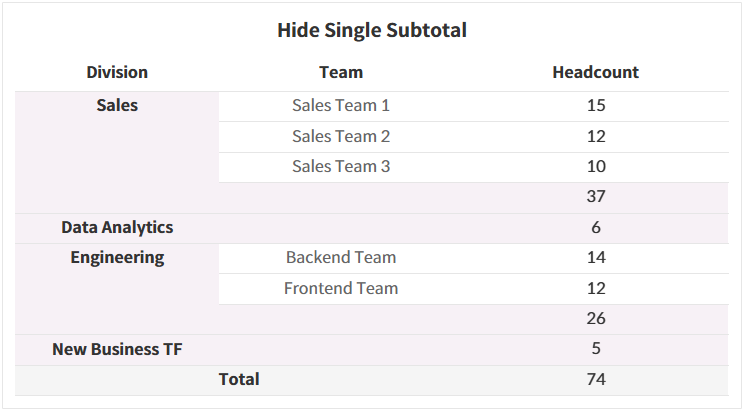
How to Hide Duplicate Subtotals for Single Sub-Items in Tableau

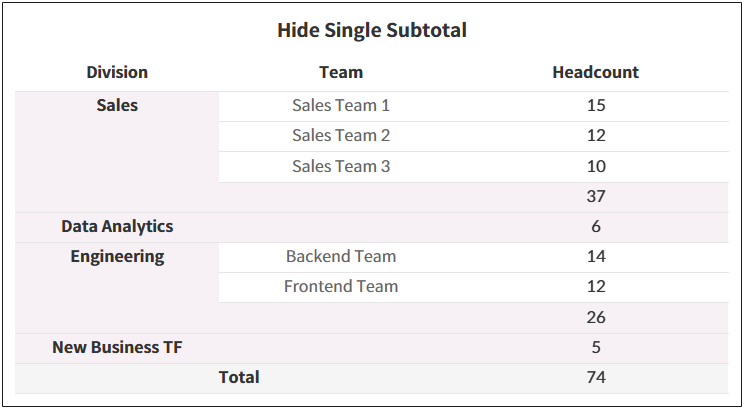
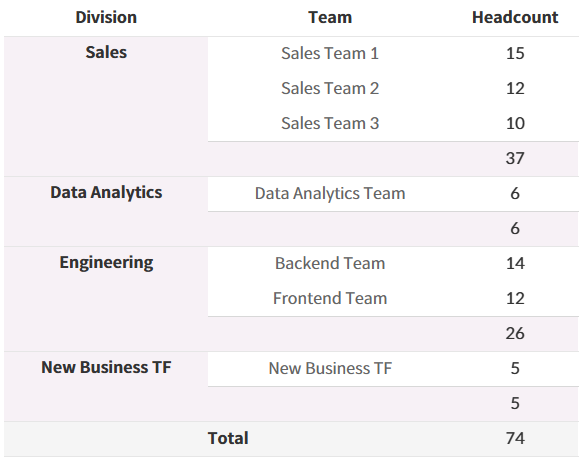
When adding subtotals to a table with two dimensions on the Rows shelf, Tableau duplicates the row if the second dimension has only one sub-item. This quick guide explains how to use a table calculation to hide these redundant rows and leave only a clean subtotal.
- Create a Calculated Field for Single Values
Create a boolean (T/F) calculated field to count the distinct number of items in the second dimension and check if it is greater than 1.WINDOW_COUNT(COUNTD([Second Dimension Name])) > 1
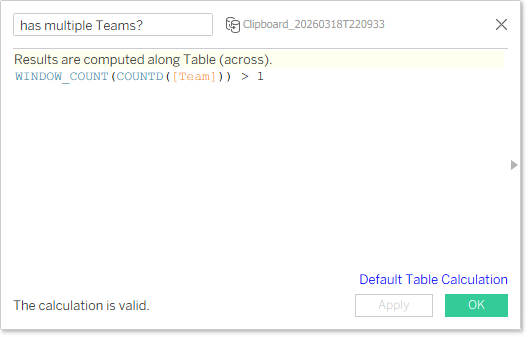
- Apply and Edit the Table Calculation
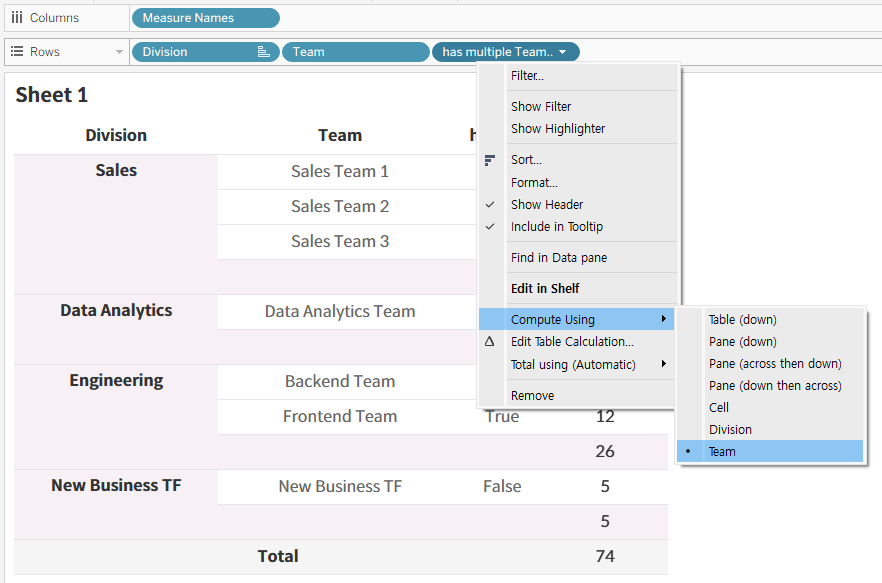
- Drag and drop the calculated field onto the Rows shelf, right next to your second dimension.
- Right-click the field on the Rows shelf, select Compute Using and check only the Second dimension. (This calculates the count within the first dimension's pane.)
- Hide the Duplicate Rows
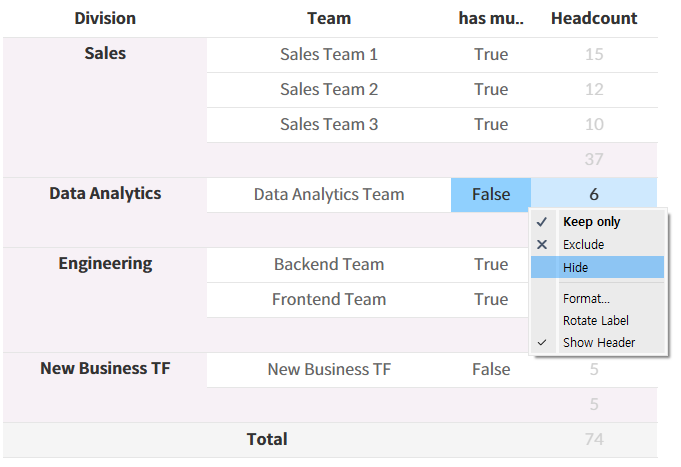
- In your view, rows with a single sub-item will now display as False, and those with multiple sub-items will display as True.
- Right-click the False text in the view and select Hide.
- Right-click the calculated field on the Rows shelf and uncheck Show Header to remove the column from the final view.
By following these steps, you can eliminate unnecessary duplicate rows for single items, saving dashboard space and improving readability.