
How to Connect Claude to Tableau Cloud

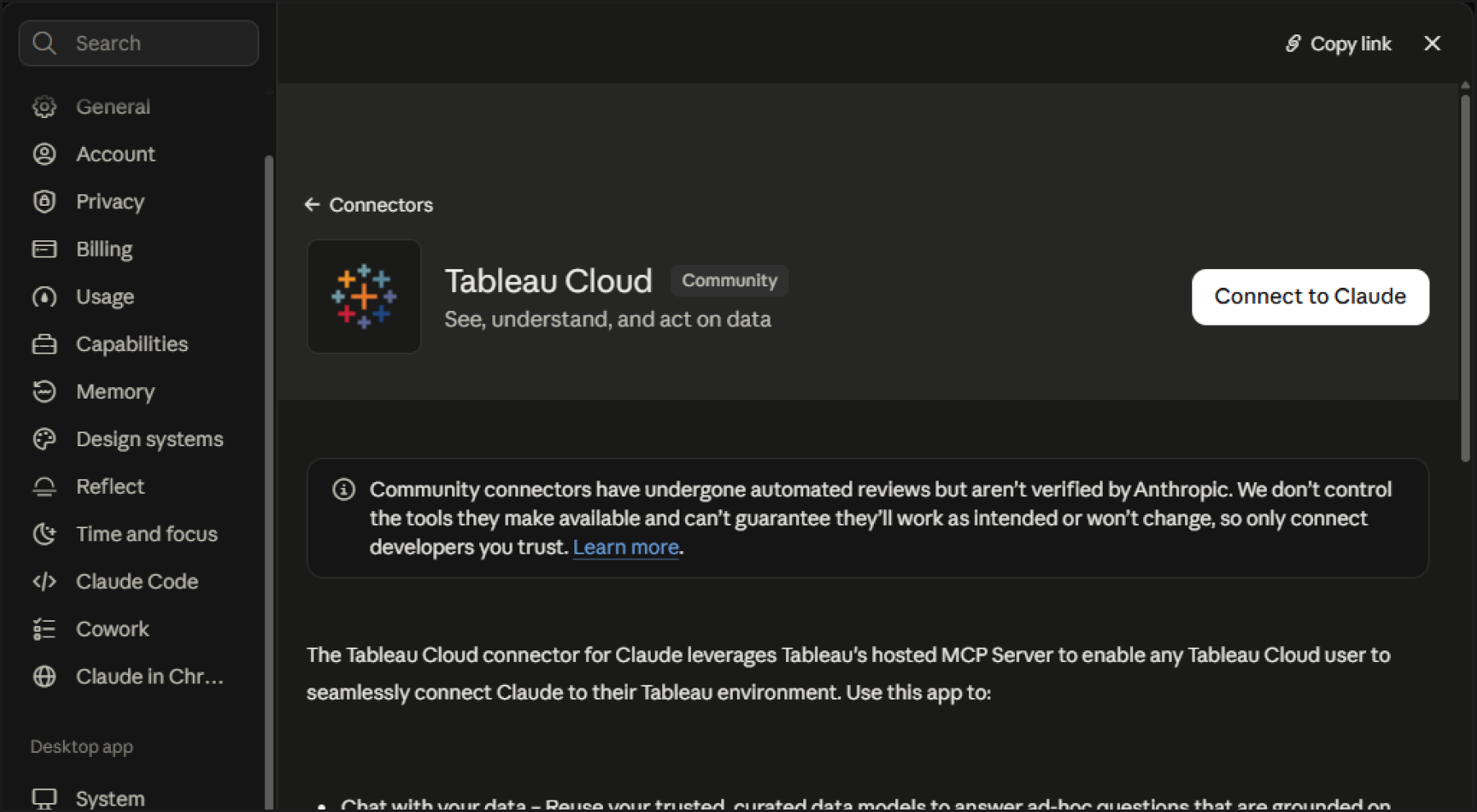
If you use Tableau Cloud, add the Tableau Cloud connector from Claude's Connectors menu and sign in with your Tableau account. That's the whole setup — no Node.js, no config file, no Personal Access Token.
Connecting
- In Claude, go to Settings → Connectors.
- Click Add → Browse connectors, search for Tableau, and select Tableau Cloud.
- Click Connect to Claude and sign in to your Tableau Cloud account.
💡
What about the "Tableau" connector in the results?
The Tableau entry (Desktop extension) is a Claude Desktop extension that runs locally and authenticates with a Tableau Personal Access Token (PAT). It's mainly intended for Tableau Server users. If you're on Tableau Cloud, the Tableau Cloud connector is all you need.
The Tableau entry (Desktop extension) is a Claude Desktop extension that runs locally and authenticates with a Tableau Personal Access Token (PAT). It's mainly intended for Tableau Server users. If you're on Tableau Cloud, the Tableau Cloud connector is all you need.
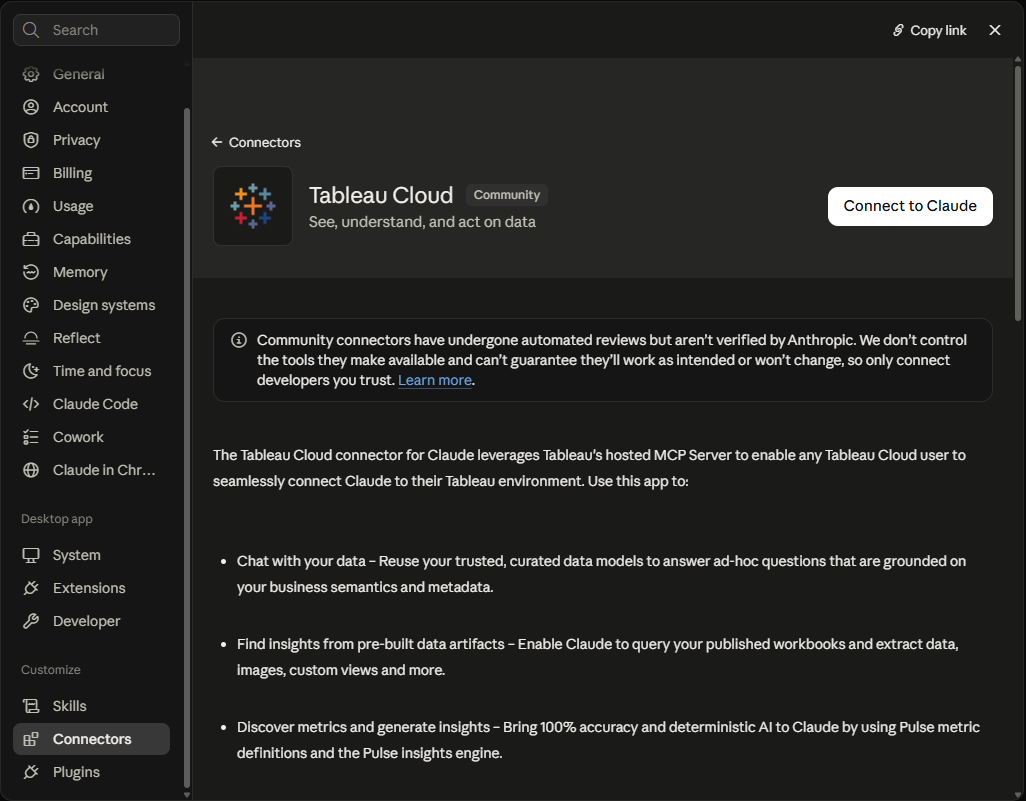
Confirming the connection
Once signed in, Tableau Cloud shows as Connected in your connectors list. The clearest check is to ask directly in a new chat:
Show me the published data sources I can accessIf a list comes back, the connection is working. If nothing happens, check that the connector is toggled on in the chat's + menu.
Worth knowing
- It runs under your own Tableau permissions. If a query fails, check that the data source has the API Access capability granted.
- For current step-by-step screens, see the official client integration guide.