How to Fix the 'An error occurred' Error When Using Tableau Agent


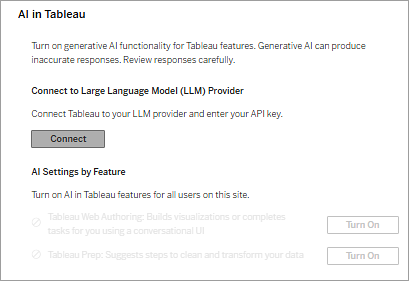
When configuring the OpenAI API for Tableau Agent in Tableau Server (version 2025.3 or later), the connection test in the settings may show as 'Success', but the following error message might appear when attempting to use the feature in web authoring:
An error occurred. Please try again.
(A 500 Internal Server Error appears in the browser's Developer Tools)
This error is typically not caused by a Tableau Server malfunction or misconfiguration, but rather because the connected OpenAI API account has run out of credits (insufficient quota).
The connection test in the Tableau Server settings simply validates the API key. Since this is a free call, it passes without issue. However, when the agent generates text in web authoring, it makes a paid API call. If the account lacks sufficient balance, OpenAI rejects the request, and the internal Tableau system returns this as a 500 error on the screen.
If you trace the detailed logs of the content-exploration microservice in Tableau Server, you can clearly see the 429 Too Many Requests (insufficient_quota) error returned by the OpenAI server:
Caused by: org.springframework.web.client.HttpClientErrorException$TooManyRequests: 429 Too Many Requests on POST request for "https://api.openai.com/v1/chat/completions":
"error": {
    "message": "You exceeded your current quota, please check your plan and billing details.",
    "type": "insufficient_quota",
    "code": "insufficient_quota"
}
Solution
To resolve this issue, go to the Billing menu on the OpenAI platform (platform.openai.com), check your payment status, and recharge your credits. After adding credits, wait approximately 5 to 10 minutes for the updated quota to sync. Then, refresh the Tableau web authoring page and try using the Tableau Agent feature again.
Reference