
Screenshot or PDF? How to Feed a Long Web Page to AI (feat. Fullcut)
For a long page you want AI to analyze, a PDF beats a screenshot. Here’s how to save an entire web page as one PNG or a one-page PDF with Fullcut.

AI can’t open pages behind a login, like an internal report or a long AI chat, so you have to save the page and attach the file. For a long page, a PDF works better than a screenshot. Fullcut, a Chrome extension, saves the entire page exactly as it looks on screen, as one PNG or a one-page PDF.


Click the Fullcut icon in the toolbar and choose Screenshot or PDF. The shortcuts are Alt+Shift+S for a screenshot and Alt+Shift+D for a PDF (Option+Shift on Mac). Screenshots are also copied to the clipboard, so you can paste them straight into a chat.
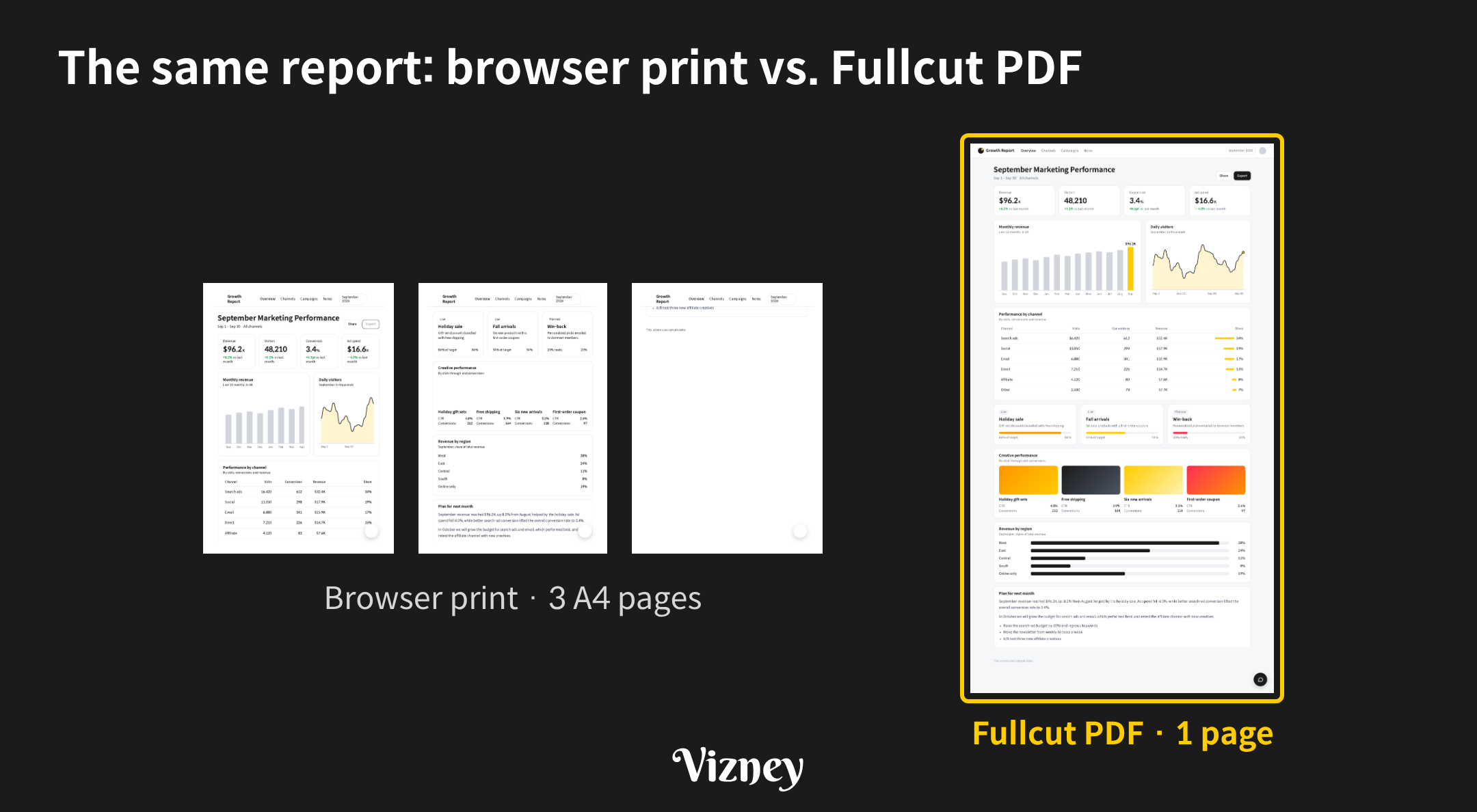
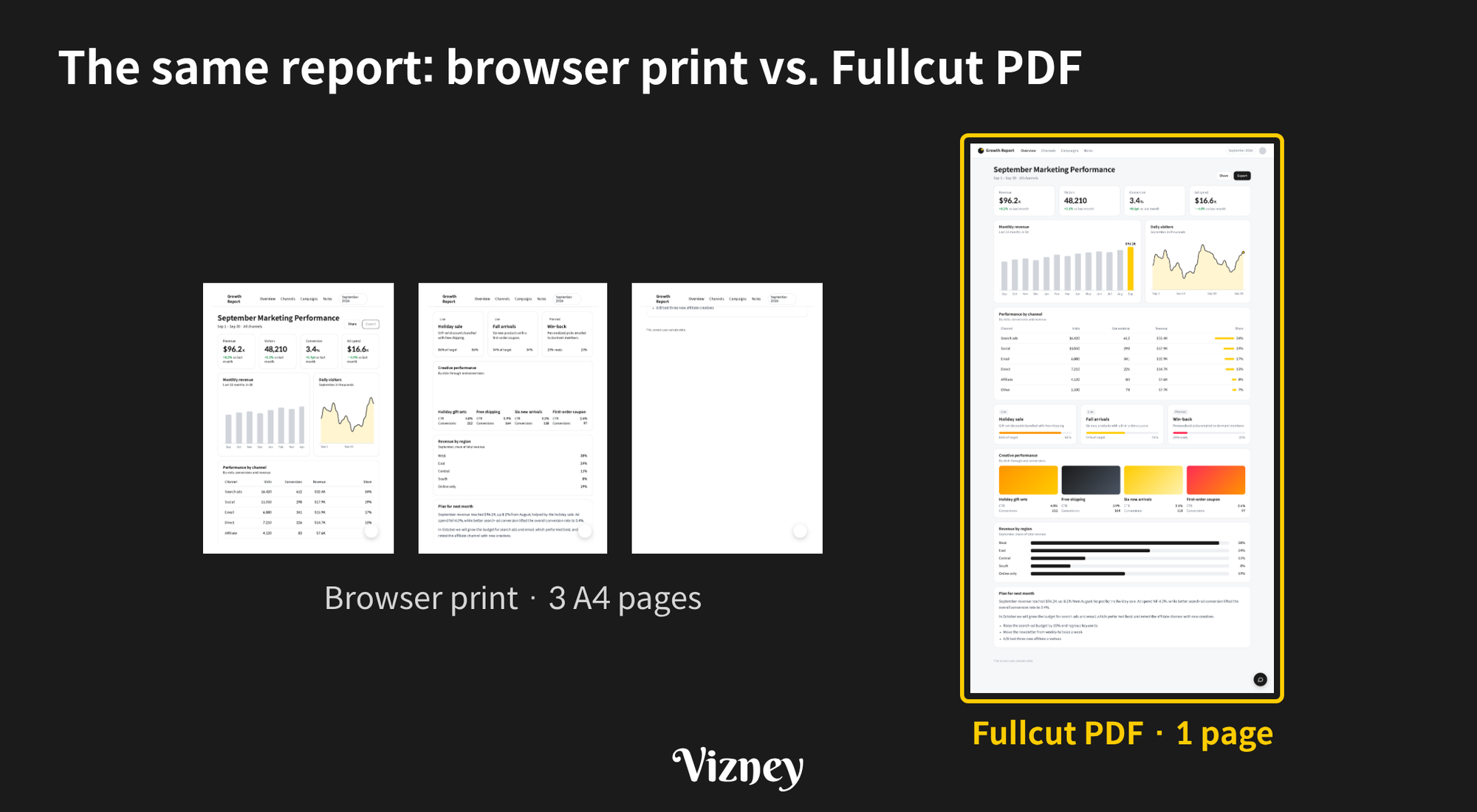
Browser print reflows the page to the paper width. As a result, the same report splits into three A4 pages and the right side of the chart is cut off. The Fullcut PDF keeps the screen width on one page, and its text can be selected and searched.
- Sharing with people: Use a screenshot. People can see it without opening a file.
- Asking AI about a short page: Use a screenshot. A screen or two is quick to paste.
- Having AI analyze a long page: Use a PDF. Reports, long tables and AI chat logs need every word and number to come through.
AI models shrink large images before reading them. According to Claude’s documentation, Claude 4.7 and later models downscale images whose long edge exceeds 2,576 pixels. In a 1,280 × 8,000-pixel screenshot, that turns 16-pixel text into about 5 pixels. With a PDF, both Claude and the OpenAI API send the extracted text along with the page image, so words and numbers arrive intact. Text inside charts drawn on a canvas or as images isn’t extracted, though.
For Tableau dashboards, use Download at the top of the view in Tableau Cloud or Tableau Server. Choose an image or PDF to show the dashboard, or a Crosstab download if you want AI to analyze the numbers (Download Views and Workbooks).
Chrome shows a debugger permission warning at install because Fullcut needs it to capture beyond the visible area. Fullcut only accesses the tab you capture and sends nothing outside your browser.
In practice, rather than reusing a screenshot you took for sharing, save a separate PDF of any long page you want AI to analyze.
Note:
The image resizing and PDF handling described here are based on Claude’s and OpenAI’s developer documentation as of October 2026. They may differ by app or model and may change later.