
Why Tableau's 'Special Values (Null)' Formatting Fails and How to Fix It

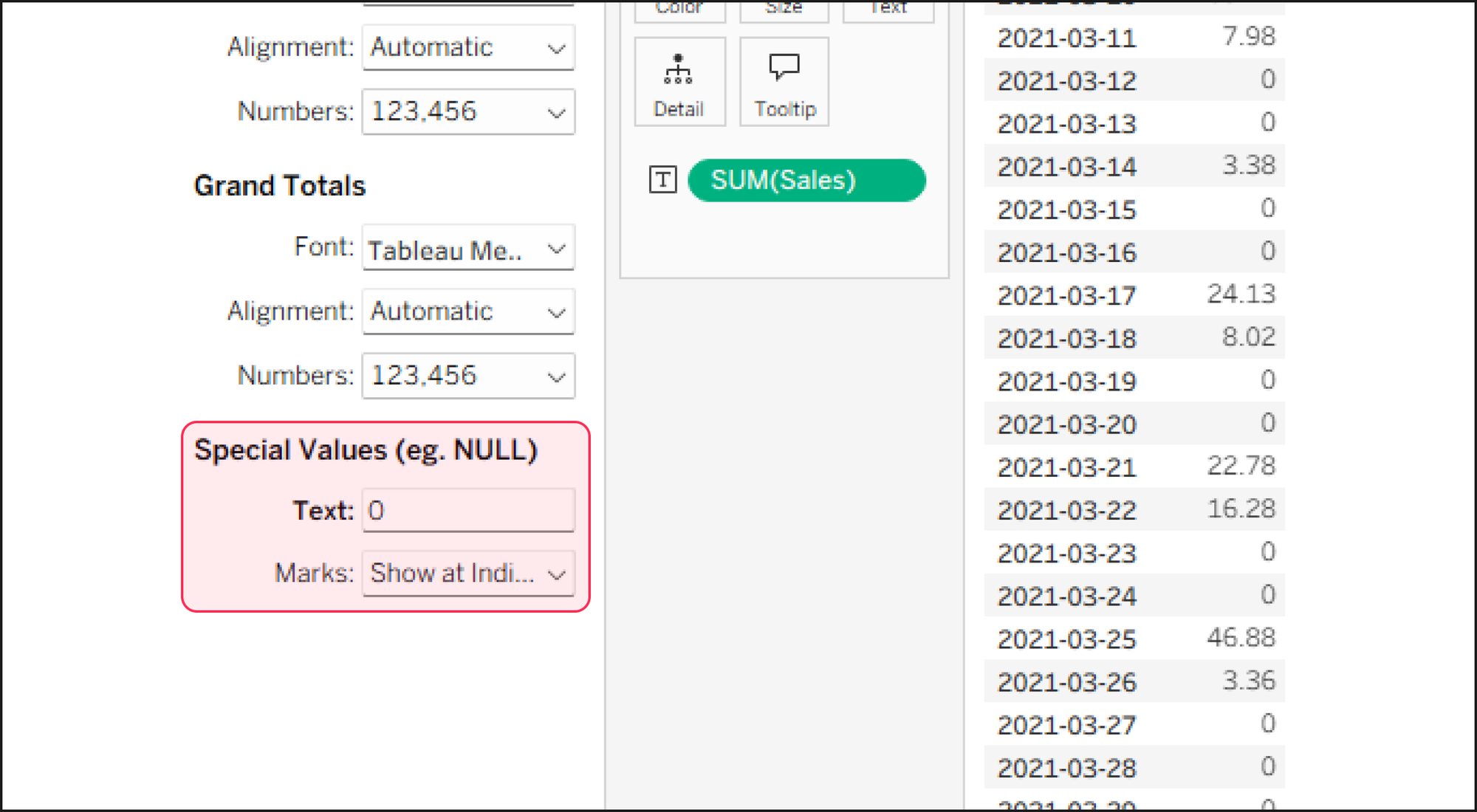
When building a text table (crosstab) in Tableau, the quickest way to fill blank cells with zeros is by entering '0' in the [Special Values (e.g., Null)] text box under the Format pane. However, you might have noticed that this feature feels inconsistent—sometimes the zeros appear perfectly, and other times the cells remain stubbornly blank.
The reason behind this behavior lies in how Tableau distinguishes between two completely different types of blanks, even though they look identical on your screen.
If a row exists in your underlying data source for a specific dimension combination but the measure value is missing (Explicit Null), the formatting tool successfully targets it and replaces it with '0'. On the other hand, if there is absolutely no record in the data source for that combination (Implicit Null, or simply no data), Tableau has no actual data point to apply the format to.
To force zeros into these non-existent data intersections, formatting alone is not enough. You must materialize the empty space using the following table calculation:
ZN(LOOKUP(SUM([Sales]), 0))
This logic works by using the LOOKUP function to evaluate the current cell (offset 0), effectively building a virtual table structure across the grid. Wrapping it in the ZN function then converts those absolute voids into physical zeros.